Sign In to ClassConnect
You can access your ClassConnect account using email/password, Google sign-in, or biometric authentication.
Email Password Login
- Open the ClassConnect app
- On the start screen, select “Sign in”
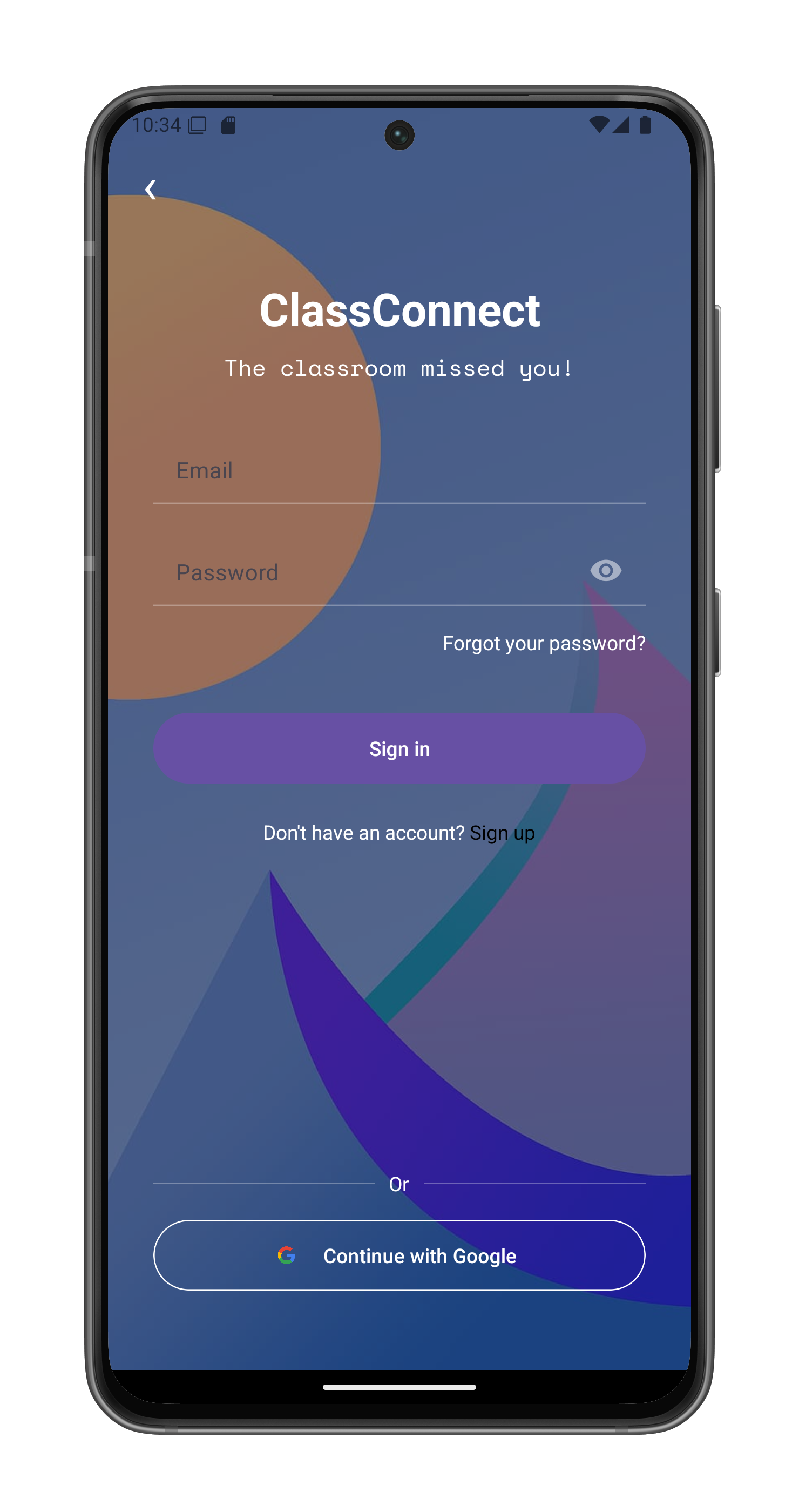
- Enter your registered email address
- Enter your password
- Tap “Sign in”
Google Sign-In
- From the sign-in screen, tap “Continue with Google”
- Select your Google account:
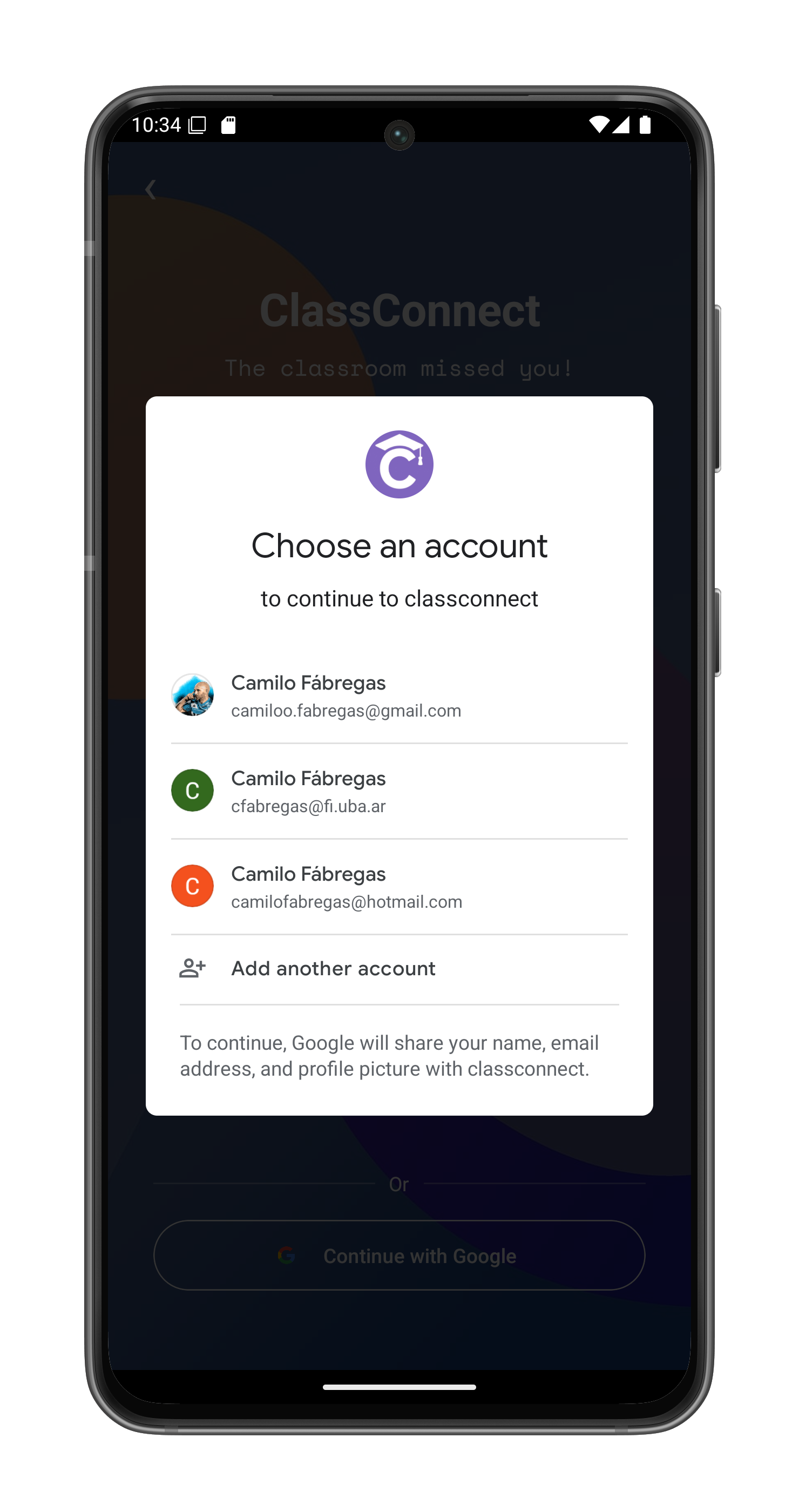
- Grant permission when prompted
Biometric Authentication
After your first successful email/password login, you’ll see the biometric option on future sign-ins:
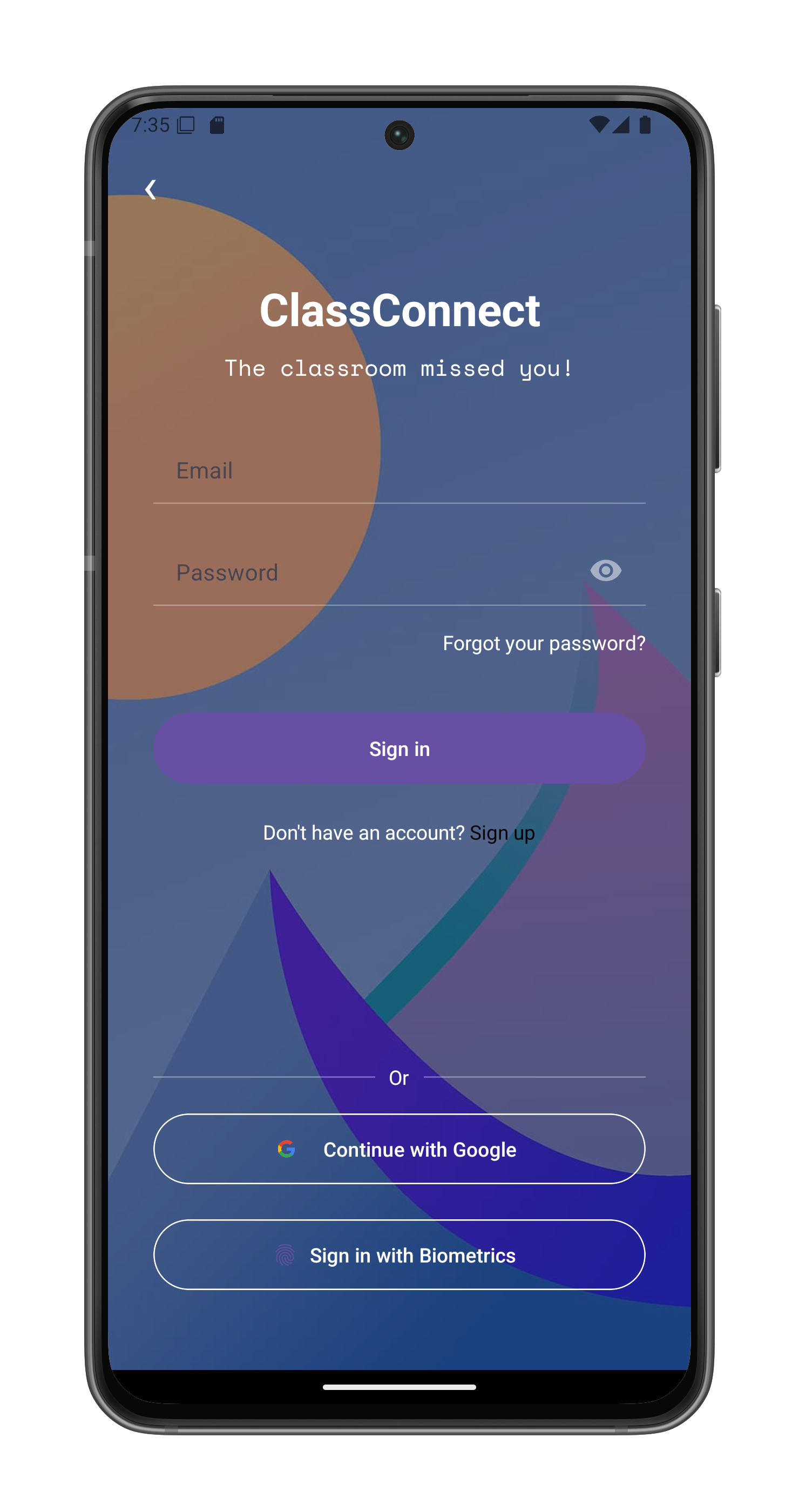
- Tap “Sign in with Biometrics”
- Verify your identity using fingerprint:

After Successful Login
You will be automatically redirected to:
- The ClassConnect home screen
- Your last active session will be restored
Notes
- Biometric login only appears after initial email/password authentication
- Google-authenticated sessions cannot use biometric login
- You must have fingerprint/FaceID configured on your device
- The app remembers your login method preference
Troubleshooting
If you can’t sign in:
- Check your internet connection
- Verify your email/password is correct
- Ensure Google Play Services is updated (for Google sign-in)
- Confirm your device supports biometric authentication if the option is missing
- Try restarting the app if biometric prompts don’t appear