Correct a Test or Assignment
Evaluate and provide feedback on student submissions.
Accessing Submissions
- Navigate to the activity in course view
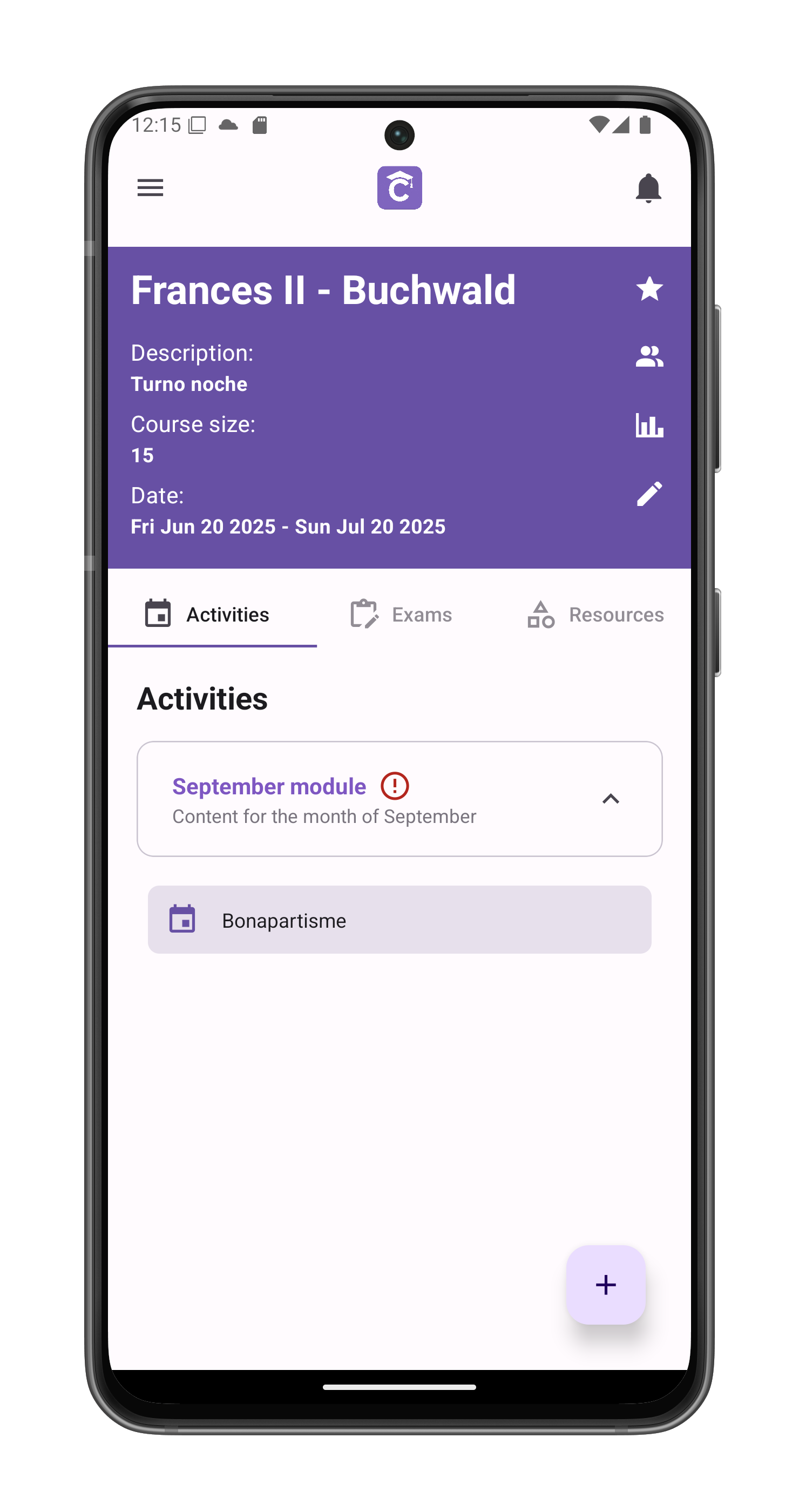
- Tap See submissions below the activity title

Student List
Displays all submissions by student name. Select a student to view their work:

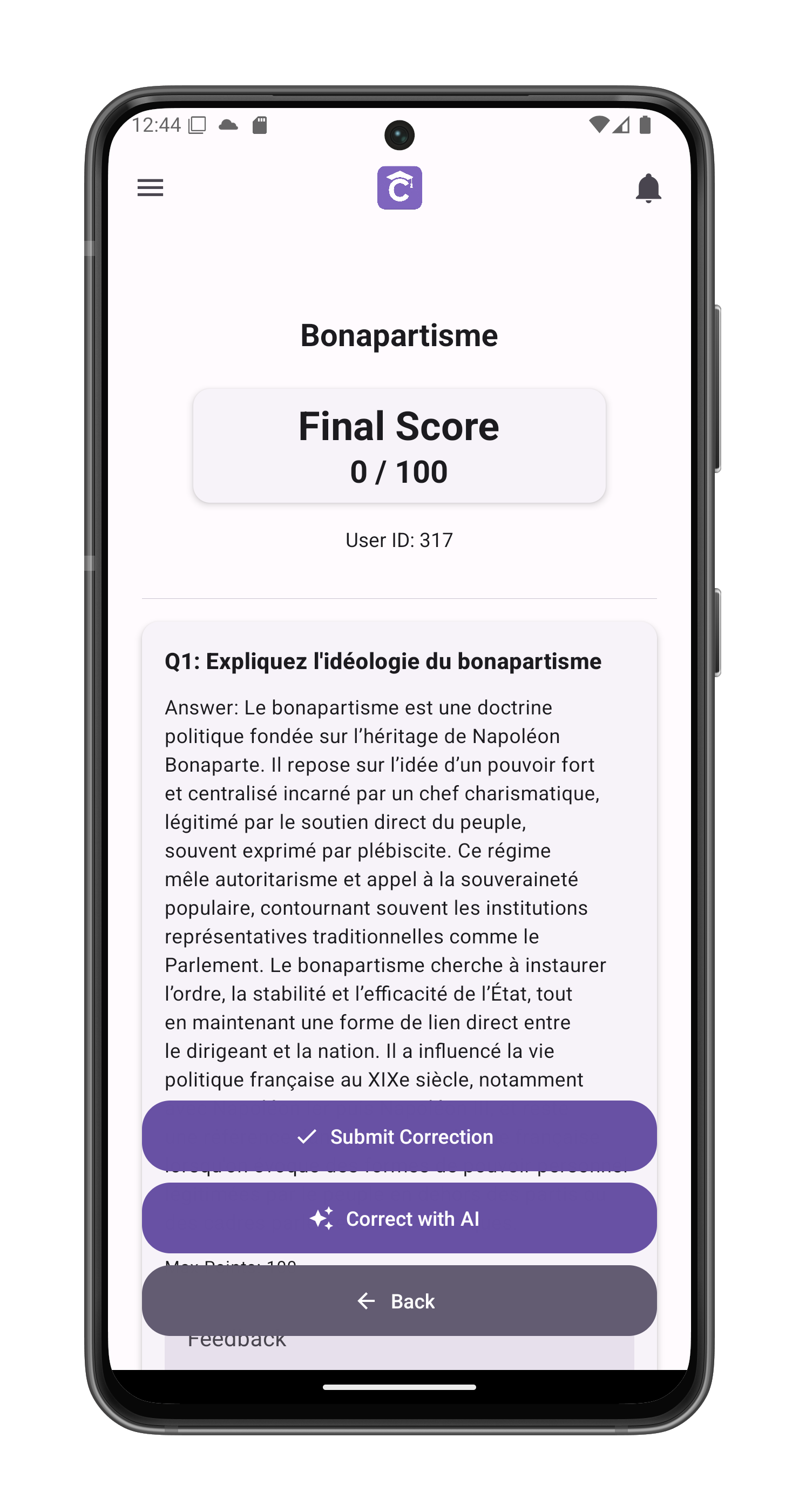
Manual Correction
- Per-Question Feedback:
- Enter points earned (0-100)
- Add specific comments
- General Feedback:
- Overall assessment
- Improvement suggestions
- Positive reinforcement

AI-Assisted Correction
- Tap Correct with AI to:
- Automatically score responses
- Generate detailed feedback
- Identify key concepts
- Review and edit AI suggestions:

Finalizing Grades
- Submit Correction to:
- Record the evaluation
- Notify the student
- Lock the submission
Important Notes
- Grades sync to student profiles
- Feedback appears in student view
Best Practices
- Use rubrics for consistency
- Balance praise with constructive feedback
- Flag exceptional work
- Note patterns across submissions