Answer an Activity or Exam
Complete and submit your work for course assessments.
Accessing Activities
- Navigate to the course view
- Select the Activities or Exams tab
- Tap any pending activity
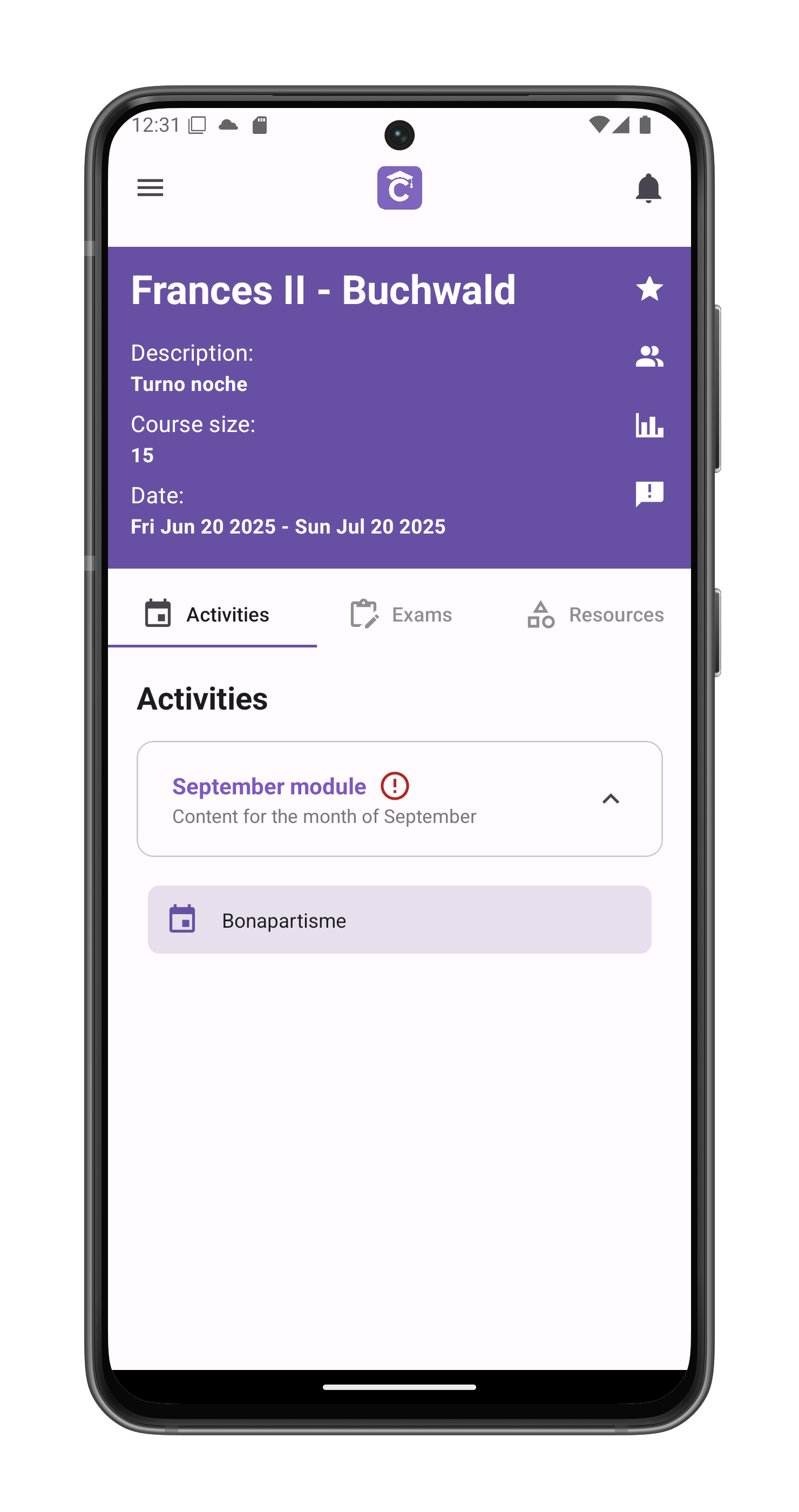
Activity Overview Screen
Displays:
- Activity title (e.g., “Bonapartisme”)
- Total possible score
- Completion status
- Complete activity button

Answering Questions
- View each question with:
- Point value
- Answer field (type directly or upload)
- For writing questions:
- Full rich text editor
- Word count visible
- Tap Submit Answer when complete

Post-Submission
- “See submission” option appears
- View your submitted answers
- Go back to the course
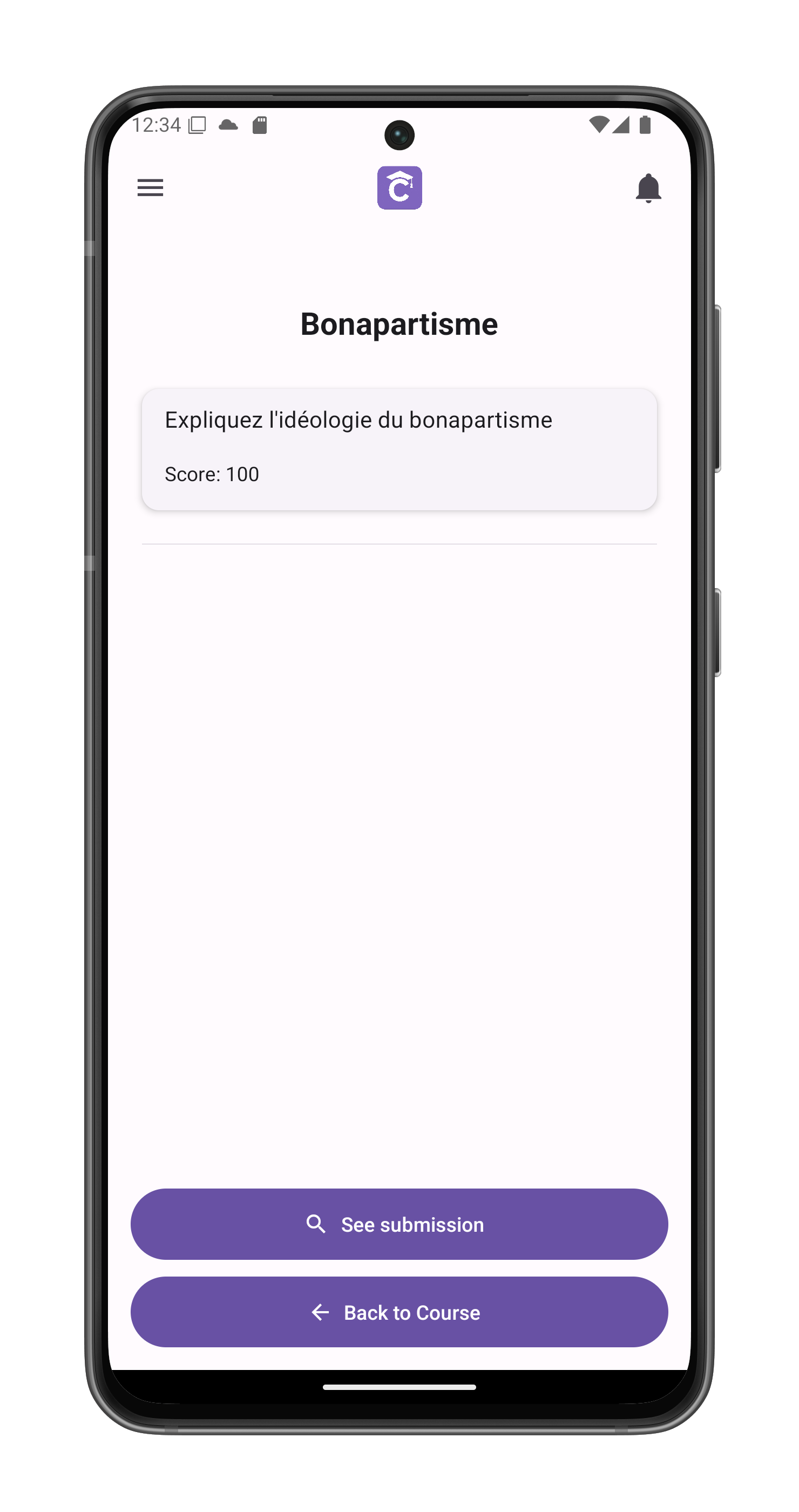
Graded Results
When evaluated by teacher:
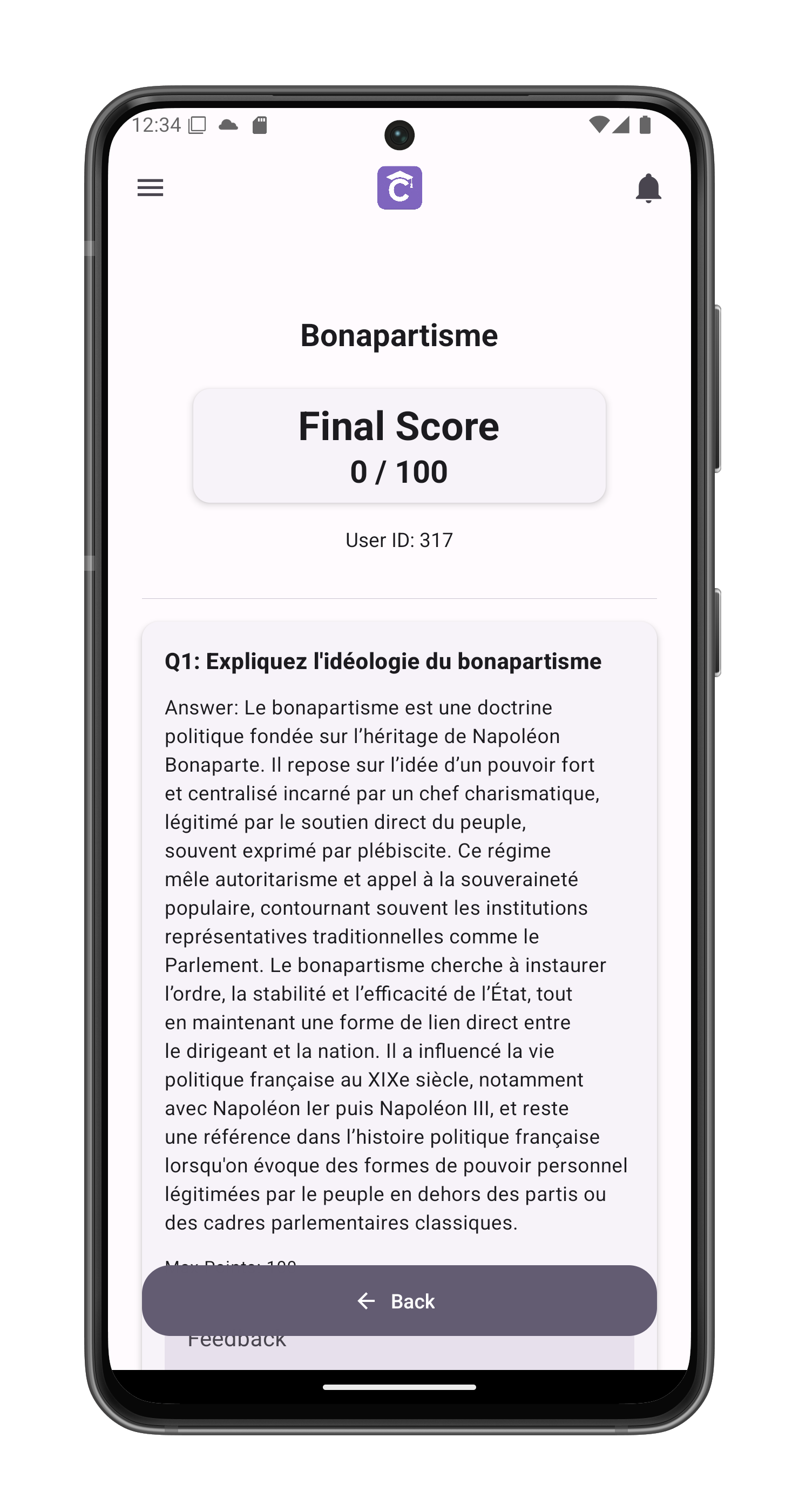
- Final score displayed
- Teacher feedback visible
- Breakdown by question
- Option to:
- Review corrections
- Request clarification
- View model answers (if enabled)
Best Practices
- Draft longer answers externally
- Review rubric before submitting
- Check feedback for improvements
- Keep submission receipts